|
 |
| Including images in Tables |
1-12 A 1 Discover
|
|
1-12 Definition 1: The image tag This tag: <img> is called the image tag. |
|
1-12 Orientation 2: The image tag Note the image tag comes as a single tag, not a tag pair. |
|
1-12 Definition 2: src In the image tag, src stands for source. |
|
1-12 Example 1: Including images in HTML files
|
|
1-12 Explanation 1: Including images in HTML files The image tag: <img> is used to embed an image into an HTML page. If both an image file and the HTML file are located in the same folder, you can embed the image into the HTML file by setting the src attribute of the image tag to the image file's name:<img src="image file name">. |
1-12 A 2 Discover
|
|
1-12 Explanation 2: Folder for an image file If an image file that will be embedded in an HTML file is located in a subfolder, its location must be specified using the src attribute: <img src="subfolder/image"> |
|
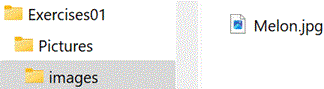
1-12 Example 2: Folder for an image file Here, the image file that will be embedded in the HTML file is located in the images subfolder. Its location is specified in the src attribute: <img src="images/Melon.jpg"> |
|
1-12 Example 3: Case sensitivity of the images folder name When image files, which will be embedded in an HTML file, are located in a subfolder named images, they are accessed with:
This happens because, once your code is uploaded to the internet, folder and
file names become case-sensitive. Therefore, for the images
folder, the correct and functional link should be: |
|
1-12 Explanation 3: Case sensitivity of the images folder name The case of all folder paths and the image file names on the computer must match those specified in the HTML document. |
|
1-12 Explanation 4: Various types of files On the internet, there are various types of files, such as .jpg and .gif. So far, a .jpg file has been used for the images in the starfruit files. In the following exercises, the .gif file type will also be used, along with the .jpg files you have been using. |
1-12 A 3
|
|
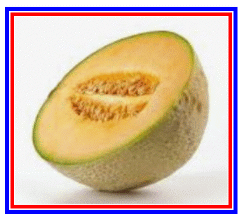
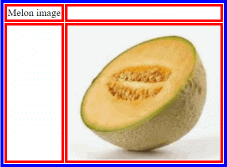
1-12 Example 4: Including an image in a table Follow this example to include an image into a table: <html> <table> </body> |
1-12 A 4
|
|
1-12 Definition 3: Extended definition of "table" So far, this definition of a table was used: A table is an arrangement of text in rows and columns. But image elements and other types of elements can also be placed in a table. All of these - text elements, image elements, and others - can be called content. So the definition can be extended to: A table is an arrangement of content in rows and columns. |
1-12 A 5
|
1-12 A 6
|
|
1-12 Orientation 3: Folder for the remaining exercises From now on, use the Pictures folder for all remaining exercises in this workbook that require you to add images into HTML files. The starfruit files continue to be saved in the StarfruitJuiceFiles folder. |
|
1-12 Orientation 4: Adding images to practice files I For each of the following exercises follow these steps:
|
|
1-12 B 1 Cats Enhance the most recent cats file you have created by adding images. |
|
1-12 Orientation 5: Adding images to practice files II As you add images to the tables, you may need to extend the tables' rows and columns as necessary. |
|
1-12 B 2 Dogs Enhance the most recent dogs file you have created by adding images. |
|
1-12 Orientation 6: Adding images to practice files III With images included in the tables, you can also add more text to improve the presentation. |
|
1-12 B 3 Birds Enhance the most recent birds file you have created by adding images. |
|
1-12 Orientation 7: Adding images to practice files IV Consider including additional styling to enhance the visual appeal. |
|
1-12 B 4 Music Enhance the most recent music file you have created by adding images. |
|
1-12 Explanation 5: Image size To adjust the size of an image as it appears in the HTML document, use the following syntax: <img src="images/image" width="n%" height="auto"> |
|
1-12 B 5 Games Enhance the most recent games file you have created by adding images. |
|
1-12 B 6 VegetrablesAndFruits Enhance the most recent VegetablesAndFruits file you have created by adding images. |
|
1-12 B 7 DreamsAndReality Enhance the most recent DreamsAndReality file you have created by adding images. |
|
1-12 B 8 BooksAndMovies Enhance the most recent BooksAndMovies file you have created by adding images. |
|
1-12 B 9 Your own HTML file Enhance the most recent file you created with your own content by adding images. |
|
1-12 A 7 Rereading the yellow sections
Now that you have gone through the exercises on this page, reread the yellow sections. |
1-12 A 8
StarfruitJuice12.html
At this point you have 2 identical files, named StarfruitJuice11.html and StarfruitJuice12.html.
|
|
This page was created by Hanspeter Amend
|
|
|
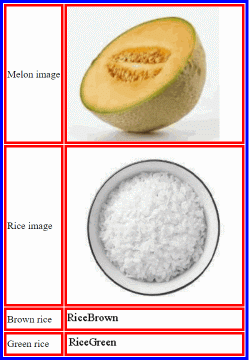
Solution proposals 1-12 A 3 <img src="images/rice.gif"> 1-12 A 4 <tr> <td style="border:4px; border-style:solid;border-color:red;"><img src="images/Melon.jpg"></td> </tr> </table> </body> </html> 1-12 A 6 <html> <body> <table style="border-width:5px;border-style:solid;border-color:blue;"> <!-- Melon text and image --> <!-- Rice text and image --> <!-- Brown rice text and image --> <!-- Green rice text and image --> </table> </body> 1-12 A 8 <html> <!- - Set style attribute for the color style of the page background. -
-> <!- - Title: Set style attribute for text style. - -> <!- - Line break - -> <!- - Paragraph - -> <!- - Two row table. Set style attribute for position style and
table size style. - -> <!- - Placing the unordered list into the second row and left column
of the table. - -> <!- - Set heading - -> <!- - Set style attribute for font styles. - -> <!- - Set style attribute for list style and font styles. - -> <!- - Placing heading, title and unordered list into the third
row and first column of the table. - -> <!- - Ordered list. Set style attributes for font styles and for
spacing style between list items.- -> <!- - Ordered list. Set style attributes for font style and for spacing
between list items style.- -> </html> |
|