Hyperlinks


Page sections

1-17 A 1 Discover 1-17 A 2 Discover 1-17 A 3 1-17 A 4 1-17 A 5 Linking from an image 1-17 A 6 Linking from an image 1-17 A 7 Rereading the yellow sections 1-17 B 1 Linking three pages 1-17 Definition 1: The href attribute 1-17 Definition 2: Hyperlink 1-17 Definition 3: Anchor tag pair 1-17 Example 1: Hyperlink 1-17 Example 2: Linking from an HTML file to another HTML file in a different folder 1-17 Example 3: Linking from an image 1-17 Explanation 1: Linking from an HTML file to another HTML file in the same folder 1-17 Explanation 2: Opening a page in a new tab 1-17 Explanation 3: Linking from an HTML file to another HTML file in a different folder 1-17 Explanation 4: Linking from an image 1-17 Orientation 1: Links 1-17 Orientation 2: Review 1-17 Orientation 3: Image files 1-17 Submit 1: Study motivation

Workbook pages

1. Settings. Line breaks and paragraphs.

2. Commenting code and checking your StarfruitJuice files

3. Style Terms

4. Headings

5. Fonts and Colors.

6. Simplified HTML structure. Colors.

7. Ordered and unordered lists

8. More List Styles

9. Font Families and Font Sizes

10. Bold, Italic and Underline

11. Tables. Online HTML Editor.

12. Including images in Tables

13. Visual Studio Code. Table Colors.

14. Table Headings and Heights of Table Rows

15. Table Sizes, Borders and Alignments

16. Rice Files

17. Hyperlinks

18. Further studies

1-17 Orientation 1: Links

In the sections that follow, you will find instructions on how to create links in an HTML page that open another HTML page.

1-17 Orientation 2: Review

Review the definition of hypertext on the first page.

1-17 A 1 Discover

  1. within your MyName_PracticeFiles folder, create a folder named LinkedFiles
  2. inside the LinkedFiles folder, create an HTML file named LittleText1.html
  3. in LittleText1.html, add the following two lines:
    This is a little text.<br>
    <a href="LittleText2.html">This sentence is a link to LittleText2.html. </a>

    Note: be sure to include the double quotes around the href attribute value
  4. save the LittleText1.html file
  5. next, within the LinkedFiles folder, create another HTML file named LittleText2.html
  6. in LittleText2.html, add the following two lines:
    This is another little text.<br>
    <a href="LittleText1.html">This sentence is a link to LittleText1.html. </a>
    Again, make sure to include the double quotes around the href attribute value
  7. save the LittleText2.html file
  8. open LittleText1.html in a browser
  9. click the link in LittleText1.html
  10. then, click the link in LittleText2.html

Explain the meaning of href="LittleText1.html":


1-17 Definition 1: The href attribute

The href attribute stands for hypertext reference.

1-17 Definition 2: Hyperlink

A word, a phrase or an image in an HTML document, that opens another HTML document when clicked, is called a hyperlink.

1-17 Example 1: Hyperlink

For an HTML file with the code below, and LittleText2.html located in the same directory, the HTML file will display a hyperlink that opens the LittleText2.html:

<html>
<body>
               <a href="LittleText2.html”>This links to LittleText2.html.</a>
</body>
</html


1-17 Definition 3: Anchor tag pair

This tag pair: <a></a> is called an anchor tag pair.

1-17 Explanation 1: Linking from an HTML file to another HTML file in the same folder

To link a word or a text in an HTML file to another HTML file located in the same folder, assign the file name of the other HTML file to the anchor tag's href attribute:

<a href="FileName.html">This hyperlink links to FileName.html.</a>

1-17 A 2 Discover

  1. open LittleText1.html in your LinkedFiles folder
  2. modify the code of LittleText1.html in the LinkedFiles folder so it looks like this:
    <a href="LittleText2" target="_blank">Text.</a>
  3. save the modified LittleText1.html as LittleText1Mod.html
  4. open LittleText1Mod.html
  5. click the hyperlink in LittleText1Mod.html


1-17 Explanation 2: Opening a page in a new tab

The anchor tag below contains tow attributes: the href attribute and the target attribute. The _blank value of the target attribute causes the linked HTML page to open in a new tab:

<a href="file.html" target="_blank">This is a little text.</a>

When you click on this hyperlink with the target attribute set to _blank, then the link will open the HTML file specified by the value assigned to the href attribute in a new tab.


1-17 Example 2: Linking from an HTML file to another HTML file in a different folder

This anchor tag:
<a href="PracticeFiles/LinkedFiles/LittleText1.html" target = "_blank">This sentence is a link to LittleText1.html.</a>

can be used to create this link:
This sentence is a link to LittleText1.html

When you click on the link, it opens the LittleText1.html file in a new tab, because the target attribute is set to: '_blank'.


1-17 Explanation 3: Linking from an HTML file to another HTML file in a different folder

To link from an HTML file to another HTML file located in a different folder, include the path to the file in the anchor tag:

<a href="Path/FileName.html" target = "_blank">This sentence is a link to file.html.</a>

1-17 A 3

In the StarfruitJuiceFiles folder, create: LinkToStarfruitJuiceFile.html with a link that opens StarfruitJuiceJuice15.html in the same tab.

1-17 A 4

In the StarfruitJuiceFiles folder, create: LinkToStarfruitFileNewTab.html with a link that opens StarfruitJuice15.html in a new tab.

1-17 Orientation 3: Image files

For the following exercises, you are going to need 3 image files. In the PracticeFiles folder, create a folder named images. Download these 3 files, and save them in the images folder:

1-17 Example 3: Linking from an image

This anchor tag creates a link from the StarfruitJuice.jpg to the LittleText1.html:
<a href="LittleText1.html"><img src="images/StarfruitJuice.jpg"></a>

1-17 Explanation 4: Linking from an image

To create a link from an image, place the <img> tag with its src attribute inside the anchor tag pair:

<a href=""><images src="Path/ImageFileName"></a>.

1-17 A 5 Linking from an image

In the StarfruitJuiceFiles folder, create LinkFromImage.html, with the StarfruitJuice.jpg image serving as a hyperlink to StarfruitJuice15.html.

1-17 A 6 Linking from an image

  1. copy the images folder from the StarfruitJuiceFiles folder into the LinkedFiles folder
  2. in the LinkedFiles folder, create the file: LinkFromMelon.html
  3. in the LinkedFiles folder, create the file: LinkFromStarfruit.html
  4. in LinkFromStarfruit.html add a hyperlink to the Melon.jpg file, linking it to the LinkFromStarfruit.html file
  5. to the left of the melon image, display the following text: This image links to the starfruit image:
  6. in LinkFromStarfruit.html, add a hyperlink to the StarfruitJuice.jpg file, linking it to LinkFromMelon.html
  7. to the left of the starfruit image, display this text: This image links to the starfruit image:
  8. save both files
  9. open one of the two files
  10. click on the image in the open file


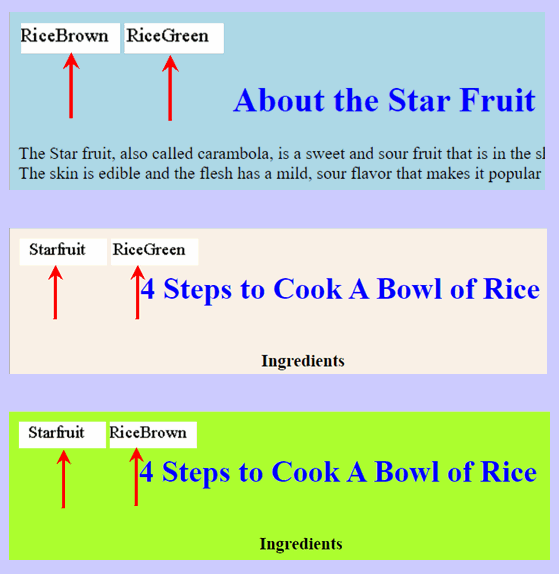
1-17 B 1 Linking three pages

Modify these pages:
  1. StarfruitJuice15.html
  2. RicePreparationBrown.html
  3. RicePreparationGreen.html

so that each contains links to the other two pages. Link from these images:

  1. Starfruit.gif
  2. RiceBrown.gif
  3. RiceGreen.gif
Place them at the top left corner of each page. Name the linked files:
  1. StarfruitJuice15_Linked.html
  2. RicePreparationBrown_Linked.html
  3. RiceGreen.gif
and save them in the corresponding folders.
         

1-17 A 7 Rereading the yellow sections

Now that you have gone through the exercises on this page, reread the yellow sections.

1-17 Submit 1: Study motivation

Click here.


This page was created by Hanspeter Amend
Previous page   Table of contents

Solution proposals


1-17 A 3

<html>
<body>
              <a href=StarfruitJuice15.html">This links to StarfruitJuice15.html</a>
</body>
</html>


1-17 A 4

<html>
<body>
              <a href="StarfruitJuice15.html" target="_blank">This links to StarfruitJuice15.html</a>
</body>
</html>


1-17 A 5

<a href="StarfruitJuice15.html"><img src="images/StarfruitJuice.jpg"></a>


1-17 A 6

LinkFromStarfruit.html:
This links to the starfruit image:<a href="LinkFromMelon.html"><img src="images/StarfruitJuice.jpg"></a>

LinkFromMelon.html:
This links to the starfruit image:<a href="LinkFromMelon.html"><img src="images/StarfruitJuice.jpg"></a>


This page was created by Hanspeter Amend Previous page   Table of contents