|
1-13 Explanation 1: Setting the tab size in Visual Studio Code To set the tab size, follow these steps:
|
| Visual Studio Code. Table Colors. |
|
1-13 Explanation 1: Setting the tab size in Visual Studio Code To set the tab size, follow these steps:
|
|
1-13 Explanation 2: Setting the font size in Visual Studio Code To set the font size, follow these steps:
|
|
1-13 Explanation 3: Turning off sticky scroll in Visual Studio Code To turn off sticky scroll (for version 1.87.1 or higher), follow these steps:
|
|
1-13 Explanation 4: Turning off popups when hovering over code in Visual Studio Code
|
|
1-13 Orientation 2: Creating an HTML file in Visual studio code The following steps show how to create an HTML file in Visual Studio Code. |
|
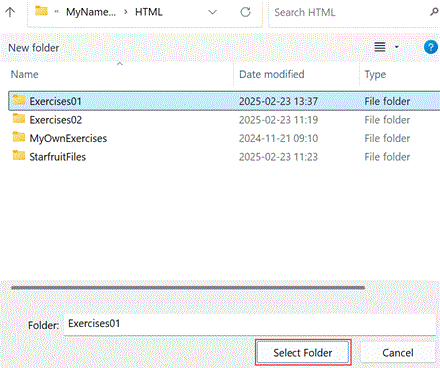
1-13 Explanation 5: Step 1 - Selecting the "Exercises01" Folder
|
|
1-13 Explanation 6: Step 2 - Opening the "Exercises01" Folder
|
|
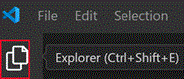
1-13 Explanation 7: Step 3 - Clicking the "Explorer" button
|
|
1-13 Explanation 8: Step 4 - Selecting the "New File…" menu item
|
|
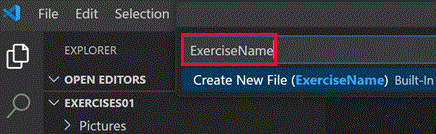
1-13 Explanation 9: Step 5 - Writing the HTML file name
|
|
1-13 Explanation 10: Step 6 - Saving the empty HTML file
|
|
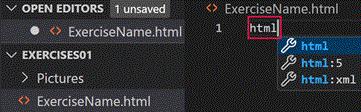
1-13 Explanation 11: Step 7 - Writing "html:5"
|
|
1-13 Explanation 12: Step 8 - Saving the modified HTML file
|
|
1-13 Explanation 13: Step 9 - Closing the "Welcome" tab If open, close the Welcome tab. |
|
1-13 Orientation 3: Using Visual Studio Code Although you can still use Notepad++ to create HTML files, Visual Studio Code should be the preferred editor from now on. |
|
1-13 Orientation 4: The background color of a table The following steps cover how to apply a background color to tables. |
|
1-13 A 1 The background color of a table In the Exercises01 folder, use Visual studio code to create an HTML file with these lines of code:
<html> <tr> <tr> Open this file in a browser and explain the following line of code: <table style="border-width:5px;border-style:solid;border-color:blue;background-color:yellow;"> |
|
1-13 Explanation 14: The background color of a table To set the color of a table, assign a property value to the background-color property in the style declaration of the opening tag of the table tag pair:<table style="background-color:property value;"></table> |
|
1-13 Example 1: The background color of a table <table style="border-width:5px;border-style:solid;border-color:blue;background-color:greenyellow;"> <tr> <td style="border-width:4px; border-style:solid;border-color:red;">Hello.</td> <td style="border-width:4px; border-style:solid;border-color:red;">Hello.</td> </tr> <tr> </table> will display this table:
|
|
1-13 A 2 Discover In the Exercises01 folder, create an HTML file with these lines of code: <tr
style="background-color:turquoise;"> <tr> Open this file in a browser and explain the difference between <table style="border-width:5px;border-style:solid;border-color:blue;background-color:yellow;"> and <tr style="background-color:turquoise;">: |
|
1-13 Explanation 15: The background color of a table row To set the color of a table row, assign a property value to the background-color property in the style declaration within the opening <tr> tag, like this:<tr style="background-color:property value;"></tr> |
|
1-13 Example 2: Overriding background colors I Note, that in the following example:<html> </body> the styles set in in the table data tags <td> override the
style set in the tr tag <tr>:
|
|
1-13 Example 3: Overriding background colors II The following lines of code: <html> <tr
style="background-color:greenyellow;"> <tr> </body> will display this table:
The background-color style: background-color:greenyellow of the table
row tag for the second row overrides the background-color style:yellow of
the table tag. |
|
1-13 Explanation 16: Style hierachies In tables, the styles set in…
|
|
1-13 A 3
Using the greenyellow and turquoise property values, create an HTML file that will display this table:
|
|
1-13 A 4
Using the names in these table cells as property values for the cells' background colors, create an HTML file that will display this table:
|